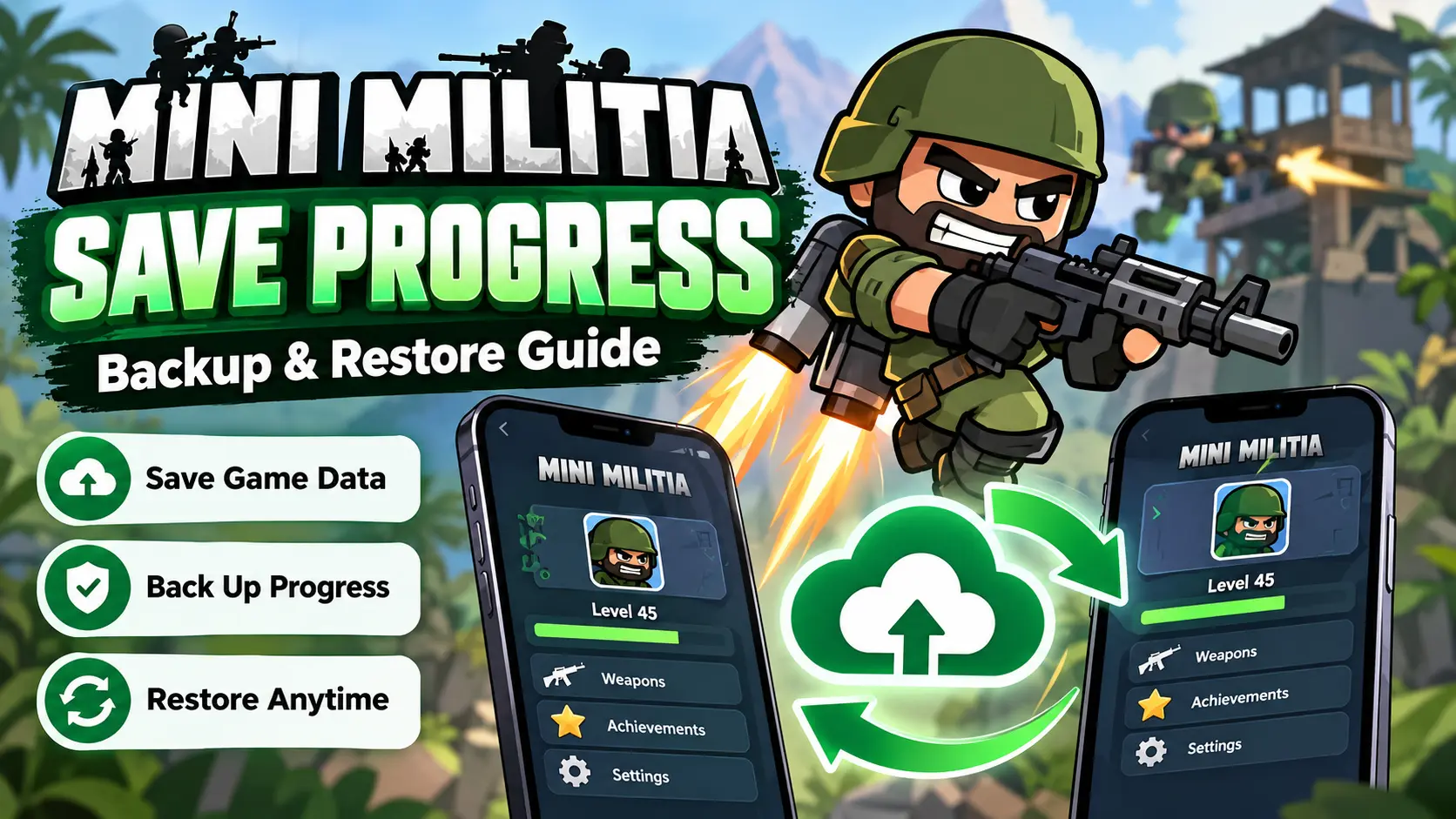
Mini Militia Save Progress: How to Save, Back Up and Restore Your Game
Want to save your Mini Militia progress without losing your profile, achievements, or game settings? Check whether your version supports account synchronization, then review your Android backup options before uninstalling the game or changing phones. Your progress may be stored locally, online, or through a supported backup service, depending on the version you use.
Quick Answer: How Do You Save Mini Militia Progress?
Open Mini Militia and check its available profile, account, or cloud-sync settings. If your version supports online progress synchronization, follow the in-game instructions and verify that your progress is associated with the correct account. Otherwise, your game data may be stored locally on your device.
- Before uninstalling: Check for a usable backup.
- Before switching phones: Verify the available transfer method.
- If progress disappears: Check your original account and backup status before resetting anything.
This guide explains how to save Mini Militia progress on Android, transfer game data to another phone, troubleshoot missing progress, and understand the limitations of MOD APK versions.
Key Takeaways
- Local game saves and cloud saves are different.
- Google Play Games sign-in does not guarantee that every game statistic is synchronized.
- Uninstalling an app or clearing its data can remove locally stored progress.
- Android backups do not necessarily include all application data.
- Modified game versions may use different storage methods.
- Verify your backup before deleting the original installation.
1. What Does Save Progress Mean in Mini Militia?
Mini Militia, also known as Doodle Army 2: Mini Militia, is a multiplayer action game featuring combat, weapons, jetpack movement, and different multiplayer modes. Players use the phrase “save progress” to describe several types of game information.
Player profile and statistics
Your profile may contain a name, statistics, achievements, or other account-related information, depending on the version. Some information may be associated with an online service, while other information may remain on your device.
Unlocks and progression
Players often want to preserve unlocked content, rewards, or progression-related information. Do not assume every unlock is stored online. Check your specific release before relying on cloud restoration.
Game settings
Audio levels, control preferences, and sensitivity may be stored separately from progression data. Restoring a player profile does not necessarily restore every preference.
Local Saves vs. Cloud Saves
| Storage Method | How It Works | What to Know |
|---|---|---|
| Local storage | Information is saved on your device. | It may be removed when app data is cleared or the game is uninstalled. |
| Cloud synchronization | Supported information is associated with an online service. | It works only if the game supports it and synchronization succeeds. |
| Android backup | Eligible application information may be included in a device backup. | Not all games back up or restore all their data. |
| Manual backup | A copy of accessible game files is created where permitted. | A copied folder may not be a complete game save. |
2. How to Save Mini Militia Progress on Android
The correct procedure depends on your installed game version. Start with the options provided by the game and your Android device instead of relying on unknown backup applications.
- Open the game.
Launch Mini Militia and check that your current profile and progress appear as expected. - Check profile and account settings.
Look for available sign-in, profile, or synchronization options. Menu names may vary by release. - Confirm the correct account.
If your game supports an online account, verify that you are using the account associated with your existing progress. - Wait for synchronization.
If the game shows a synchronization process, use a stable internet connection and allow it to finish. - Review Android backup settings.
Open your phone’s Settings and look for Google backup or your manufacturer’s backup service. - Verify before making changes.
Check available backup information before uninstalling the game, resetting your phone, or clearing its data.
3. Does Mini Militia Automatically Save Progress?
Some game information may be saved automatically, but automatic saving is not the same as cloud synchronization. A game can retain local information without uploading it to an online account.
For example, you might play several matches and close the game. Some information may remain available when you reopen it on the same phone. If you uninstall the game afterward, locally stored information may no longer be accessible.
The precise behavior depends on the game version, its storage system, and supported online services. Check the current game settings and official support information instead of assuming all statistics, unlocks, or preferences are backed up.
4. How to Transfer Mini Militia Progress to a New Phone
Moving to a new Android phone can be risky if your progress exists only on your old device. Prepare the old phone before removing the game or performing a factory reset.
Before transferring your game
- Keep the old phone available until the transfer is verified.
- Check the game’s account and synchronization options.
- Confirm the account used by your existing profile.
- Review whether Android backup includes eligible application data.
- Record your player name and other non-sensitive details for troubleshooting.
- Check compatibility before installing a different game version.
On the new Android phone
- Install a compatible version of Mini Militia from a trusted source.
- Sign in with the same supported account, if the game uses one.
- Follow the available restoration or synchronization instructions.
- Check your profile, statistics, unlocks, and settings individually.
- Keep the original installation untouched until you know what transferred.
If your profile looks empty on the new phone, avoid repeatedly switching accounts or deleting the new installation. First check whether the original game used local storage and whether a compatible backup exists.
5. How to Restore Mini Militia Progress After Reinstalling
If you have already uninstalled Mini Militia, recovery depends on whether your progress was synchronized or backed up before removal.
Method 1: Check supported account synchronization
If your version supports online progress synchronization, sign in with the original account and follow the game’s restoration instructions. Wait for the process to finish before deciding that the data is missing.
Method 2: Review Android backups
Android offers backup and restoration features for eligible data. However, backup availability does not prove that a particular game included its progress. Review the available backup details and game documentation.
Method 3: Check an existing device backup
If you previously used a phone migration tool or supported backup service, check whether it saved the relevant application data. Confirm compatibility before attempting restoration.
Method 4: Contact game support
If the game provides a support channel, explain what happened and include your device model, game version, and approximate date the progress disappeared. Never share your password, authentication codes, or private account credentials.
No. If the only copy was stored locally and deleted without a usable backup, recovery may not be possible. Be cautious of websites promising guaranteed recovery.
6. Why Is Mini Militia Progress Not Saving?
Missing progress can have several causes. Identify the likely problem before trying a fix that might remove additional data.
| Possible Problem | What to Check | Recommended Action |
|---|---|---|
| Wrong account | Whether you signed in with your previous account. | Verify the original account without deleting data. |
| Sync problem | Internet connection and synchronization status. | Reconnect and retry the supported process. |
| Cleared app data | Whether Clear storage or Clear data was selected. | Check available backups or recovery options. |
| Uninstalled game | Whether the previous installation stored data locally. | Check synchronization and device backups. |
| Different version | Whether the old and new releases are compatible. | Review official compatibility guidance. |
| Modified APK | Whether the release differs from the official game. | Check documentation and protect original data. |
| Incomplete transfer | Whether app data was included in the phone transfer. | Review the backup or migration process. |
Does clearing cache delete progress?
Clearing cache and clearing app data are different operations. Cache clearing generally removes temporary files, whereas clearing app data can reset locally stored information. Avoid unnecessary cleanup until you understand how your version stores progress.
Should you reinstall Mini Militia to fix saving issues?
Reinstallation should not be your first troubleshooting step. It can remove local data and may not resolve a synchronization problem. Check the account, backup status, and version compatibility first.
7. How to Save Progress in Mini Militia MOD APK
Modified versions of Mini Militia may change gameplay features, application identifiers, or storage behavior. Their backup and account features may differ from the official game.
If you use a Mini Militia MOD APK, keep the following points in mind:
- Do not assume official cloud synchronization works in a modified release.
- Different MOD APK versions may not be compatible with one another.
- Installing another version may fail or create a separate installation.
- Uninstalling a modified app can remove locally stored progress.
- Unofficial installation files can introduce security and privacy risks.
Before switching versions, identify the source of your current installation and check available backup instructions. Avoid tools that request unnecessary permissions or promise unlimited progress recovery.
For related information, visit Mini Militia MOD APK. Verify download safety, compatibility, and storage behavior before installing third-party software.
8. Can You Back Up Mini Militia Files Manually?
Some players try to copy game files to another folder or phone. However, accessible files may not contain all the information needed to restore a player’s progress.
Android restricts access to many applications’ private storage locations. Depending on the Android version and application configuration, a copied folder might contain temporary files rather than the relevant saved data.
Before relying on a manual backup
- Use a method permitted by your device and the game.
- Confirm that the backup contains the relevant data.
- Check compatibility with the destination phone and game version.
- Keep the original data unchanged until restoration is verified.
- Avoid unknown backup utilities that request unnecessary permissions.
Rooting a phone or bypassing Android storage protections is not a dependable solution for ordinary players. It can introduce security risks and may affect existing data.
9. Mini Militia Save Progress vs. Cloud Save
Players often use “save progress” and “cloud save” as if they mean the same thing. In practice, they describe different storage methods.
| Feature | Local Saving | Cloud Saving |
|---|---|---|
| Storage location | On your device. | On a supported online service. |
| Internet connection | Not always required. | Usually required for synchronization. |
| Moving phones | May require a compatible backup. | May allow restoration if supported. |
| After uninstalling | Local data may be removed. | Previously synchronized data may remain available. |
| Guaranteed support | No; it depends on the game. | No; it depends on the game. |
An online game account, Google Play Games sign-in, Android device backup, and a game’s own cloud-save feature are not necessarily the same system. Verify which features your version supports.
10. Best Practices to Protect Mini Militia Progress
Before installing an update
Check the update source and version compatibility. If your progress may be stored locally, avoid removing the existing installation until you understand how the update handles saved data.
Before freeing up storage
Review the difference between clearing cache and clearing application data. Do not select Clear storage or Clear data without understanding the consequences.
Before changing accounts
Confirm which account is associated with your existing profile. Signing out and signing in again will not necessarily restore locally stored information.
Before changing devices
Test the available backup or restoration method while the old device is still accessible. A backup is useful only if it contains the information you need and can be restored successfully.
Protect your account
Use trusted download sources and keep your device software updated. Never share passwords or one-time verification codes with websites claiming to restore game progress.
11. Example: Moving Mini Militia to a New Phone Safely
Imagine you have played Mini Militia for several months and want to move from your old Android phone to a new one. Verify the available transfer method before deleting anything from the original device.
Your Transfer Checklist
Step 1: Open the game on the old phone and verify your existing profile.
Step 2: Check the game’s documented account or cloud-save options, if available.
Step 3: Review Android backup settings and eligible application data.
Step 4: Install a compatible release on the new phone and follow the supported restore process.
Step 5: Check the profile, achievements, unlocks, and settings that matter to you.
Step 6: Keep the old installation intact until you confirm the transfer.
If the new phone shows an empty profile, stop before resetting the installation. Compare the accounts and versions, then determine whether the original data was stored locally or included in a backup.
12. Frequently Asked Questions About Mini Militia Save Progress
How do I save progress in Mini Militia?
Check the game’s account and synchronization settings. If progress is stored locally, avoid uninstalling the app or clearing its data until you have confirmed a usable backup.
Does Mini Militia save progress automatically?
Some information may be saved automatically, but this does not guarantee that all progress is synchronized online. The behavior depends on the game version and supported services.
Will I lose Mini Militia progress if I uninstall the game?
You may lose locally stored data. Progress synchronized to a supported service may be recoverable, but verify this before uninstalling.
Can I transfer Mini Militia progress to another phone?
Possibly. Use a supported account synchronization or backup method if your version provides one, and verify the restored data before removing the old installation.
Does Google Play Games save Mini Militia progress?
Not automatically in every case. Google Play Games sign-in and game-progress synchronization are separate capabilities. Check the specific game’s support information.
How can I recover deleted Mini Militia progress?
Check supported cloud synchronization and existing device backups. If the only copy was deleted local data and no usable backup exists, recovery may not be possible.
Does Mini Militia MOD APK save progress?
It depends on the modified release. Storage and account features may differ from the official game, so do not assume official backup methods will work.
Can I save Mini Militia progress without the internet?
Some locally stored information may be saved without an internet connection. Online synchronization, when supported, generally requires connectivity.
Will clearing the cache delete my progress?
Clearing cache is different from clearing app data, but behavior can vary. Avoid clearing storage or app data until you have checked your backup options.
Why is Mini Militia showing no progress?
Possible causes include signing in with a different account, incomplete synchronization, an incompatible version, or progress stored only on the previous device.
Can I restore Mini Militia progress on an iPhone?
Restoration depends on the iOS version of the game and its supported account or device-backup features. Android backup instructions do not directly apply to iPhone.
Is there a guaranteed way to recover all Mini Militia data?
No. Recovery depends on the available backup, the game’s storage system, and compatibility. Be cautious of services promising guaranteed recovery.
13. Official References and Trusted Sources
For reliable backup instructions, prioritize platform documentation and information from the game’s publisher. These references explain general backup behavior; they do not guarantee that every Mini Militia version supports cloud saves.
- Google Android Help: Back up or restore data
- Google Play Help
- Google Play Store — check the current game listing, publisher, and support information.
Before publishing version-specific instructions, verify them against current developer documentation. Do not invent menu names, save buttons, or recovery procedures that cannot be confirmed.
14. Author Credibility and Editorial Note
This guide explains the differences between local game data, online synchronization, and Android backup services. It distinguishes general Android behavior from features that depend on a particular Mini Militia release.
Editorial standard: Update this guide when verified game documentation or supported backup procedures change. Present recovery methods accurately and never promise guaranteed restoration without evidence.
Conclusion: Protect Your Mini Militia Progress
The safest way to protect Mini Militia progress is to understand how your installed version saves data before uninstalling, resetting, or transferring the game. Check supported synchronization, review eligible Android backups, and verify restored progress before removing the original installation.
Looking for more game-related information? Visit Mini Militia MOD APK. Always verify download safety, version compatibility, and backup support before making changes to your game.