Mini Militia Not Working 2026: Full Troubleshooting & Fix Guide
Crashing on launch, stuck on loading, won’t connect online, or lagging mid-match — here’s how to diagnose and fix the most common Mini Militia problems.
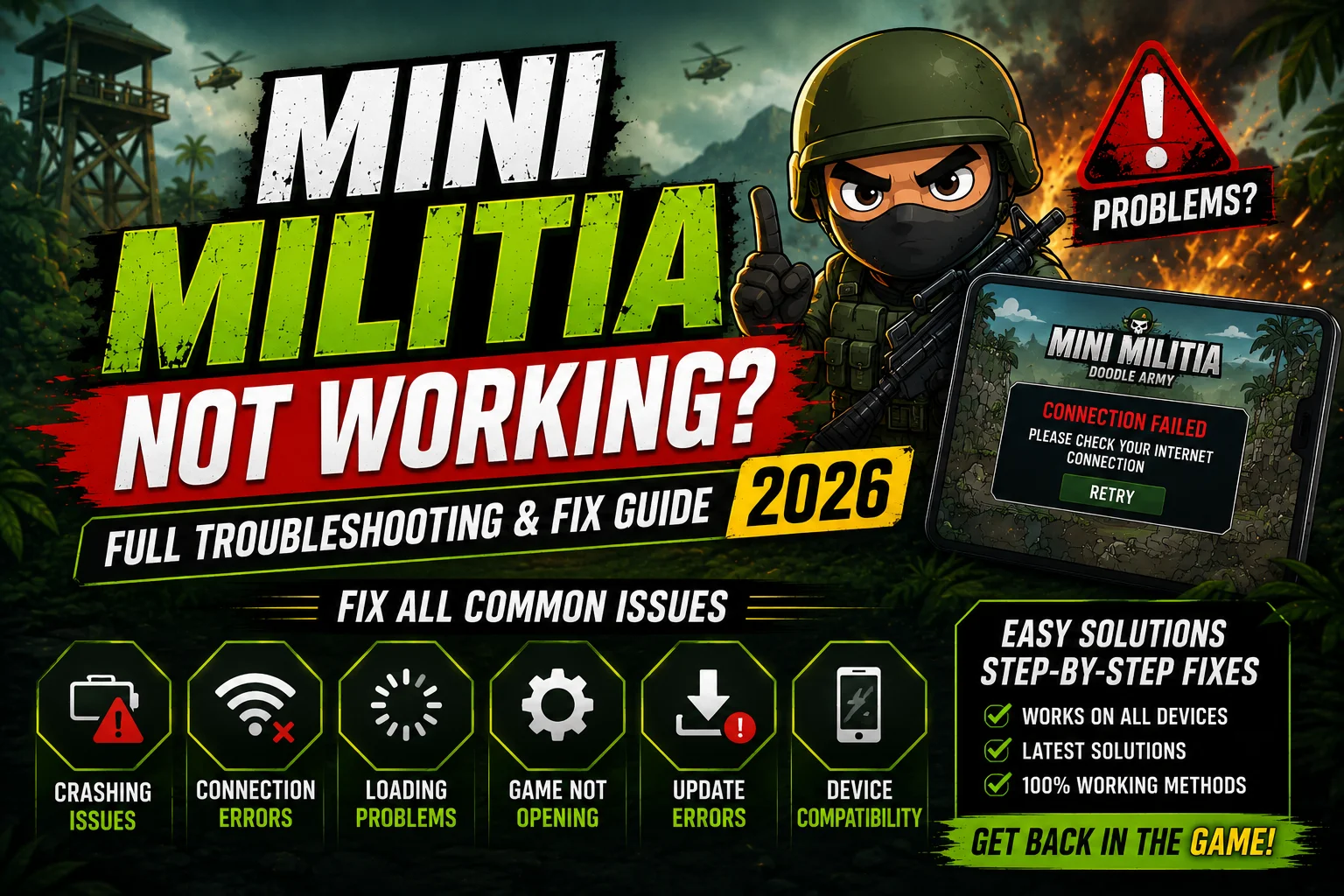
Few things are more frustrating than being ready for a match and having the game refuse to cooperate — crashing on launch, freezing on a loading screen, or just silently failing to connect. The good news is that almost every one of these issues traces back to a small handful of causes, and most can be fixed in a few minutes without reinstalling anything. This guide walks through the most common problems players run into and the fixes that actually resolve them.
Common Issues at a Glance
| Issue | Likely Cause | Quick Fix |
|---|---|---|
| App crashes on launch | Outdated app or corrupted cache | Clear cache, then update or reinstall |
| Stuck on loading screen | Unstable connection or storage issue | Check WiFi/data, free up storage |
| Won’t connect online | Server issue or weak connection | Switch networks, check server status |
| Lag or stuttering | Background apps, low RAM | Close other apps, restart device |
| Controls not responding | Touch calibration or control settings | Reset controls in settings menu |
| LAN room not showing | Devices on different networks | Reconnect to same hotspot |
| Black screen after update | Incomplete update install | Force close and reopen, or reinstall |
General Fixes to Try First
Force close and reopen the app
This clears any temporary glitch from the current session and is the fastest thing to try before anything else.
Restart your device
A full restart clears background processes and memory that can quietly interfere with app performance over time.
Check your internet connection
Switch between WiFi and mobile data to see if the issue is connection-specific, especially for anything related to online matches.
Clear the app’s cache
Go to your device’s app settings, find Mini Militia, and clear cache (not data, which would erase progress). This often fixes crashes and freezing.
Update the app
Check the Play Store or your install source for a pending update. Running an outdated version is one of the most common causes of instability.
Free up storage space
If your device is nearly full, the game may struggle to load assets properly. Clearing unused files and apps can resolve loading and crash issues.
Fixes for Specific Problems
Game Crashes Immediately on Launch
This is almost always a cache or version issue. Clear the app cache first; if that doesn’t work, uninstall and reinstall the latest version rather than trying to patch an older install.
Can’t Connect to Online Matches
Confirm your internet is working in other apps first. If it is, the game’s servers may be temporarily down — this isn’t something you can fix locally, so waiting and retrying later is the right move.
Game Lags or Stutters Mid-Match
Close background apps eating memory, lower in-game graphics settings if available, and make sure your device isn’t overheating from extended play sessions.
Touch Controls Feel Unresponsive
Go into the game’s control settings and reset to default, then reconfigure sensitivity. A screen protector or case edge can also physically interfere with touch input near the screen borders.
Friends Can’t See My LAN Room
Double-check every device is connected to the same WiFi hotspot, not just nearby. Toggling the hotspot off and back on usually resolves rooms that fail to appear.
Black Screen or Freeze After an Update
Force close the app completely and relaunch it — sometimes an update doesn’t fully apply until the next fresh launch. If it persists, uninstall and reinstall.
When to Reinstall the App
If you’ve tried clearing cache, updating, and restarting your device without success, a clean reinstall is usually the next step. Uninstall the app completely, restart your device once more, then reinstall from the Play Store or official source. This clears out any corrupted files that a simple cache clear can’t touch. Just be aware that uninstalling can affect locally stored progress if it isn’t tied to a synced account, so check your save/login status before doing this if you want to keep your progress.
When the Problem Isn’t on Your End
Sometimes the issue genuinely isn’t something you can fix locally. Server outages happen occasionally and affect everyone trying to connect at once, not just you — checking community forums or social media for other players reporting the same issue is a quick way to confirm this. Similarly, right after a major game update rolls out, a short window of instability while servers catch up to demand is common and usually resolves itself within a day.
Frequently Asked Questions
Why does Mini Militia keep crashing on my phone?
Crashing is most often caused by an outdated app version or a corrupted cache. Clearing the cache and updating to the latest version resolves this in most cases.
Will clearing the app’s data delete my progress?
Clearing cache is safe and won’t affect progress, but clearing data (a separate option) can erase local save information if it isn’t tied to a synced account, so avoid that unless necessary.
Why can’t I connect to online matches even with good WiFi?
If your internet works fine in other apps, the game’s servers may be temporarily down or under heavy load. This usually resolves on its own within a short time.
How do I fix laggy gameplay on an older phone?
Close background apps before playing, lower any available graphics settings, and give your device a restart before longer sessions to clear out accumulated memory usage.
Is it safe to reinstall the app if nothing else works?
Yes, reinstalling is a safe and often effective last resort. Just confirm your progress is tied to a synced account first if you want to avoid losing any local save data.
How do I know if it’s a server issue and not my device?
If other apps and your internet connection work fine, but the game specifically won’t connect, and you see other players reporting the same problem online, it’s likely a server-side issue rather than something on your end.
Final Thoughts
Most Mini Militia issues come down to one of a handful of common causes — an outdated version, a full cache, a shaky connection, or a temporary server hiccup. Working through the general fixes first usually solves the problem without needing anything drastic. If you’ve worked through this guide and something still feels off, keep an eye on official channels or community forums, since it may simply be a wider issue affecting many players at once rather than something specific to your setup.
Playing on PC instead?
Check out our BlueStacks Install Guide for a smoother setup and fewer performance issues.
Read the PC Install Guide